BlurZoomFilter Component
Overview
This component applies a zooming blur filter to the UI object it is applied to.
WebGL Demo
Properties
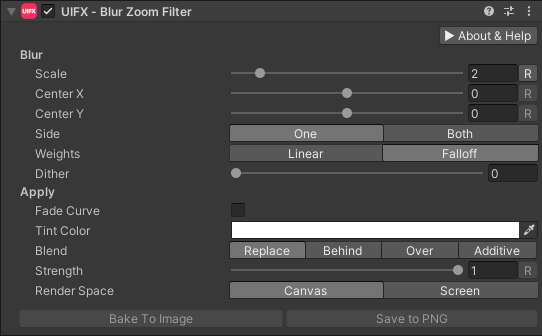
| Property | Type | Range | Default | Description |
|---|---|---|---|---|
| Blur | ||||
| Center | Vector | [-1..1] | 0.0 | The origin position of the blur. 0,0 is the center of the image. -1, -1 is the bottom left corner, 1,1 is the top right corner. |
| Scale | Float | [1..10] | 2.0 | The scale of the blur. |
| Direction | Enum | Out | Whether to draw the blur only scaling up, scaling down, or both. Options are: • In: The blur is only in one direction scaling down (this is the best performance option).• Out: The blur is only in one direction scaling up.• Both: The blur is in both directions. | |
| Weights | Enum | Falloff | The type of weights to use for the blur, this changes the visual appearance with Falloff looking higher quality, for little extra cost. Options are: • Linear: All weights along the blur are equal.• Falloff: Weights along the blur decrease towards the edge giving a smoother visual. | |
| Weights Power | Float | [0..8] | 1.0 | The power factor for the weighted falloff. |
| Dither | Float | [0..1] | 0.0 | The amount of dithering to apply, useful to hide banding artifacts and also for styling. |
| Apply | ||||
| Fade Curve | Bool | False | Allows easy toggling between using the Alpha Curve to control transparency or not, without losing the set curve. | |
| Alpha Curve | Curve | Optional curve to control transparency. The curve ranges from time [0..1] and value [0..1] and is useful for fading down the visual as Strength increases. | ||
| Tint Color | Color | White | Tint (multiply) the blurred color by this for styling. | |
| Blend | Enum | Replace | How the source graphic and the blurred graphic are blended/composited together. Options are: • Replace: Only the blurred result is rendered.• Behind: The blurred result is rendered behind the original graphic.• Over: The blurred result is rendered over the top of the original graphic.• Additive: The blurred result is rendered over the top the original graphic using additive blending. | |
| Strength | Float | [0..1] | 1.0 | Strength of the effect. |
| Render Space | Enum | Canvas | Which coordinate system use when rendering this filter. Options are: • Canvas: Render the filter before any transforms (scale/rotation/translation etc) are applied.• Screen: Render the filter after transforms have been applied. Read more about this property here. | |
| Expand | Enum | Expand | Whether to expand the Graphic area to accommodate this filter overflowing the original bounds. Setting this to None can be useful when applying effects to content you want to enclose in a frame using something like the FrameFilter component. |
Usage
Add this component to any GameObject that contains a UI Graphic component (eg Text, Image, RawImage, etc). The object will now render with an adjustable blur effect applied.
Usage with TextMeshPro
To use this filter effect with TextMeshPro - Text (UI) use the Filter Stack (TextMeshPro) component.
Render Space
Learn about the RenderSpace property
The RenderSpace property effectively controls whether the filter is rendered before or after the Transform is applied. There are two options:
Canvas- This is the default mode for all filters. In this mode the filter is rendered to theGraphicbefore it is transformed into screen-space by the localTransformand by theCanvas. This means that any changes or animations to the transform (or it's parents) will not cause the filter to re-render (unlessCanvashas pixel-perfect mode enabled), which is a performance benefit! This also means that when theGraphicis rotated, the filter will not be aware of this, so the filter will rotate as well.Screen- This was the default mode before version 1.8.0 was released. In this mode the filter is rendered to theGraphicafter it is transformed into screen-space. This means that any changes or animations to the transform (or it's parents) will cause the filter to re-render which can become expensive. It has the advantage that it is possible to do some screen-aware options, such as clamping the filter to the edges of the screen, or extending an edge to the edge of the screen (for example in the Frame Filter component)
RenderSpace Rotation Example
In the above example you can see that Canvas RenderSpace renders the filters before the transforms are applied, so the drop shadow offset rotates with text and it is only rendered once which is good for performance. In the Screen RenderSpace the filter is rendered after the transform is applies, so the drop shadow offset is not affected by the transform (both situations are valid depending on the use-case), however each time the transform is updated the filter must render which is more expensive.
RenderSpace Scaling Example
Again in this example we can see that transform affects how often the filters are rendered. This example also shows how scaling looks in the two RenderSpace modes. In Canvas mode the scaling transform is applied after the filter, so the drop shadow distance appears to scale naturally. In the Screen mode, the scaling transform is applied before the filter, so the filter is using unscaled distance values so the drop shadow offset appears incorrect when scaled as the properties are in screen-space. This is also why the FilterStackTextMeshPro component has the Relative To Transform Scale property.
RenderSpace Canvas Example
In Unity it is common to use the Canvas Scaler component to allow the UI to scale to fit different device resolutions. UIFX supports this, but there are some subtle differences depending on the RenderSpace mode used. If you don't use the Canvas Scaler component, or your device resolution is the same as the Canvas Scaler reference resolution, then UIFX will render the filters at the same resolution in both Canvas and Screen RenderSpace modes. If however your device resolution is lower than the reference resolution (eg reference is 1080p but your device is 720p), then Canvas mode will still render the filter at the same resolution before, but Screen mode will render it at half the resolution. This means Screen mode will use less texture memory and will be faster. If your device resolution is higher than the reference resolution (eg reference is 1080p but your device is 4K), then Canvas mode will still render the filter at the same resolution as before, but Screen mode will render at double the resolution. This means Screen mode will use double the texture memory compared to Canvas, however it also means that Screen will give slightly better quality results.
For example if you have reference resolution on the Canvas Scaler set to 1920x1080 and you have a UI text object is 400x200 on the screen with a filter applied to it:
- if your output resolution is 1920x1080, UIFX will render the filters at 400x200.
- if your output resolution is 3840x2160, UIFX will render the filter at 400x200 if it's in
Canvasmode because the object is still 400x200 relative to the reference resolution - but inScreenmode it will render it at 800x400 because that is the size it will be on the screen. - if your output resolution is 1280x720, UIFX will render the filter at 400x200 if it's in
Canvasmode because the object is still 400x200 relative to the reference resolution - but inScreenmode it will render it at 266x133 because that is the size it will be on the screen.
Summary
A summary of the differences:
| Feature | Canvas | Screen |
|---|---|---|
| Adjusting local/parent transforms causes filter re-render | No (unless Canvas has pixel-perfect mode enabled) | Yes |
In WorldSpace Canvas adjusting camera transform causes filter re-render | No | Yes |
Best performance when using ScrollRect | Yes | No |
| Filter offset/direction properties affected by rotation | Yes | No |
| Filter offset/direction properties affected by scale | Yes | No |
| Filter rendering resolution scales with screen resolution | No | Yes |
In general, Canvas is usually the best option in terms of balance between performance, memory usage and functionality. If you need higher quality rendering because you are targeting higher resolution devices than your reference resolution (on Canvas Scaler component), then use Screen mode. If you need the filter offset/direction properties to always run in screen-space (ie not be affected by rotation or other transforms), then use Screen mode.
Scripting
Namespace
using ChocDino.UIFX;
Adding Component
// Add the component to your GameObject and set default properties
var blur = AddComponent<BlurZoomFilter>();

blur.Center = Vector2.zero;
blur.Scale = 2f;
blur.Weights = BlurDirectionalWeighting.Falloff;
blur.WeightsPower = 1f;
blur.Direction = BlurZoomDirection.Out;
blur.Dither = 0f;
blur.ApplyAlphaCurve = false;
blur.AlphaCurve = new AnimationCurve(new Keyframe(0f, 1f, -1f, -1f), new Keyframe(1f, 0f, -1f, -1f));  // AlphaCurve is optional and can be null
blur.TintColor = Color.white;
blur.Power = 1f;
blur.Intensity = 1f;
blur.Blend = BlurDirectionalBlend.Replace;
blur.Strength = 1f;