跳至主要内容

Fill Color Filter Component

Component Screenshot

Overview

This component can fill a UI element with a solid color or a simple gradient of colors.

WebGL Demo

Properties
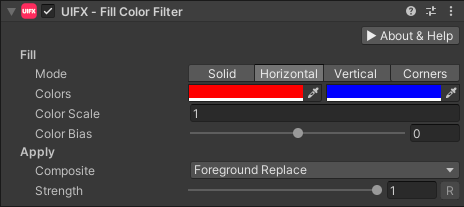
Component Screenshot

Property                            Type    Range    DefaultDescription
Fill
    ModeEnumSolidThe fill mode to use. Options are:
Solid: A single solid color.
Horizontal: A gradient from ColorA on the left edge to ColorB on the right edge.
Vertical: A gradient from ColorA on the top edge to ColorB on the bottom edge.
Corners: Four colors at each of the corners of the rectangle, creating a gradient fill effect.
    ColorColorRedThe color of the fill in Solid mode.
    ColorAColorRedThe color of the left edge in Horizontal mode, and the top edge in Vertical mode.
    ColorBColorBlueThe color of the right edge in Horizontal mode, and the bottom edge in Vertical mode.
    ColorTLColorRedThe color of top-left corner in Corners mode.
    ColorTRColorGreenThe color of top-right corner in Corners mode.
    ColorBLColorBlueThe color of bottom-left corner in Corners mode.
    ColorBRColorMagentaThe color of bottom-right corner in Corners mode.
    Color ScaleFloat1.0Used to scale the positions of the edge/corner colors in Horizonal/Vertical/Corners mode. Higher values move the colors towards the center of the rectangle.
    Color BiasFloat[-1..1]0.0Used to bias the position of the edge colors in Horizonal/Vertical mode.
Area
    Fill SpaceEnumGeometryOptions are:
Geometry: The gradient position is relative to the Graphic geometry.
Screen: The gradient position is relative to screen-space.
Apply
    Blend ModeEnumBlendThe blending mode to apply the gradient to the original Graphic. Options are:
Replace
Blend
Over
Under
Mask
Clear
Darken
Multiply
Color Burn
Linear Burn
Lighten
Screen
Color Dodge
Linear Dodge
Overlay
Soft Light
Hard Light
Vivid Light
Linear Light
Pin Light
Hard Mix
Difference
Exclusive
Subtract
Divide
    Blend Mode Force Gamma SpaceBoolFalseWhether to force blend operations in happen gamma-space to match the default in software such as PhotoShop. Otherwise blend operations happen in the active color-space.
    StrengthFloat[0..1]1.0Strength of the effect.
    Render SpaceEnumCanvasWhich coordinate system use when rendering this filter. Options are:
Canvas: Render the filter before any transforms (scale/rotation/translation etc) are applied.
Screen: Render the filter after transforms have been applied. Read more about this property here.

Usage

Add this component to any GameObject that contains a UI Graphic component (eg Text, Image, RawImage, etc). The object will now render with a shadow.

Usage with TextMeshPro

To use this filter effect with TextMeshPro use the Filter Stack (TextMeshPro) component.

Render Space

The RenderSpace property effectively controls whether the filter is rendered before or after the Transform is applied. There are two options:

  • Canvas - This is the default mode for all filters. In this mode the filter is rendered to the Graphic before it is transformed into screen-space by the local Transform and by the Canvas. This means that any changes or animations to the transform (or it's parents) will not cause the filter to re-render (unless Canvas has pixel-perfect mode enabled), which is a performance benefit! This also means that when the Graphic is rotated, the filter will not be aware of this, so the filter will rotate as well.
  • Screen - This was the default mode before version 1.8.0 was released. In this mode the filter is rendered to the Graphic after it is transformed into screne-space. This means that any changes or animations to the transform (or it's parents) will cause the filter to re-render which can become expensive. It has the advantage that it is possible to do some screen-aware options, such as clamping the filter to the edges of the screen, or extending an edge to the edge of the screen (for example in the Frame Filter component)

RenderSpace Rotation Example

In the above example you can see that Canvas RenderSpace renders the filters before the transforms are applied, so the drop shadow offset rotates with text and it is only rendered once which is good for performance. In the Screen RenderSpace the filter is rendered after the transform is applies, so the drop shadow offset is not affected by the transform (both situations are valid depending on the use-case), however each time the transform is updated the filter must render which is more expensive.

RenderSpace Scaling Example

Again in this example we can see that transform affects how often the filters are rendered. This example also shows how scaling looks in the two RenderSpace modes. In Canvas mode the scaling transform is applied after the filter, so the drop shadow distance appears to scale naturally. In the Screen mode, the scaling transform is applied before the filter, so the filter is using unscaled distance values so the drop shadow offset appears incorrect when scaled as the properties are in screen-space. This is also why the FilterStackTextMeshPro component has the Relative To Transform Scale property.

RenderSpace Canvas Example

In Unity it is common to use the Canvas Scaler component to allow the UI to scale to fit different device resolutions. UIFX supports this, but there are some subtle differences depending on the RenderSpace mode used. If you don't use the Canvas Scaler component, or your device resolution is the same as the Canvas Scaler reference resolution, then UIFX will render the filters at the same resolution in both Canvas and Screen RenderSpace modes. If however your device resolution is lower than the reference resolution (eg reference is 1080p but your device is 720p), then Canvas mode will still render the filter at the same resolution before, but Screen mode will render it at half the resolution. This means Screen mode will use less texture memory and will be faster. If your device resolkution is higher than the reference resolution (eg reference is 1080p but your device is 4K), then Canvas mode will still render the filter at the same resolution as before, but Screen mode will render at double the resolution. This means Screen mode will use double the texture memory compared to Canvas, however it also means that Screen will give slightly better quality results.

For example if you have reference resolution on the Canvas Scaler set to 1920x1080 and you have a UI text object is 400x200 on the screen with a filter applied to it:

  • if your output resolution is 1920x1080, UIFX will render the filters at 400x200.
  • if your output resolution is 3840x2160, UIFX will render the filter at 400x200 if it's in Canvas mode because the object is still 400x200 relative to the renference resolution - but in Screen mode it will render it at 800x400 because that is the size it will be on the screen.
  • if your output resolution is 1280x720, UIFX will render the filter at 400x200 if it's in Canvas mode because the object is still 400x200 relative to the renference resolution - but in Screen mode it will render it at 266x133 because that is the size it will be on the screen.

Summary

A summary of the differences:

FeatureCanvasScreen
Adjusting local/parent transforms causes filter re-renderNo (unless Canvas has pixel-perfect mode enabled)Yes
In WorldSpace Canvas adjusting camera transform causes filter re-renderNoYes
Best performance when using ScrollRectYesNo
Filter offset/direction properties affected by rotationYesNo
Filter offset/direction properties affected by scaleYesNo
Filter rendering resolution scales with screen resolutionNoYes

In general, Canvas is usually the best option in terms of balance between performance, memory usage and functionlity. If you need higher quality rendering because you are targeting higher resolution devices than your reference resolution (on Canvas Scaler component), then use Screen mode. If you need the filter offset/direction properties to always run in screen-space (ie not be affected by rotation or other transforms), then use Screen mode.